
This document describes the role of companies in the Engine platform, the relation to customers and sub-customers, what details to complete and how to add/edit companies in Engine.
-
When a customer signs a contract a link will be provided to onboard themselves. On customer level the contract details, invoicing details and services agreed will be stored.
-
Under customer - For each service a country specific sub-customer will be created. For example:
-
Customer = KlearNow Corp., Santa Clara, California, USA
-
Sub-customers under KlearNow Corp:
-
US - Broker
-
CA- Broker
-
UK - Broker
-
ES - Broker
-
NL - Broker
-
US - Drayage partner
-
NL - Data Engine
-
-
-
Under sub-customers companies can be linked. For brokers these companies will be importers and exporters of record. For Data engine customers companies will contain either importers and exporters of record or any other role depending on the purpose of the data to be received from the KlearNow Data engine. These companies will be added and linked to the sub-customer. Once linked and a shipment is received for that sub-customer pre-processing will see the linked companies in a dropdown to select from.
How many companies must be added for sub-customers depends for each sub-customer. For example for Data Engine there are 2 scenarios possible:
-
Sub-customer requires all shipment data including party details, transport details and all invoice details. In that case each company must be available and linked to the sub-customer
-
Sub-customer only requires invoice line details. In that case a single and generic company can be created to be used for all shipments.
When users log on to Engine the following menu appears (if granted access by an admin user):
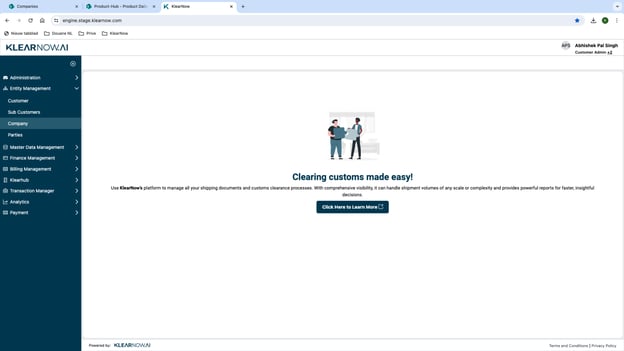
Under entity management the “Company” menu item is available
When pressing on “Company” an overview of available companies for the (sub)customer becomes visible:
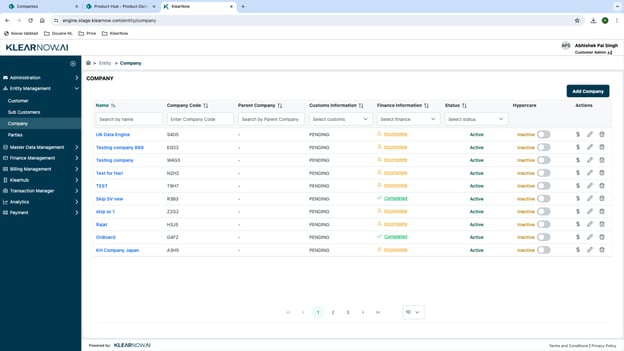
For each company several details are available - If it's active, if Hypercare is applicable, if finance or customs information still needs to be completed. From this screen actions can be performed as well such as editing, deleting and add billing details.
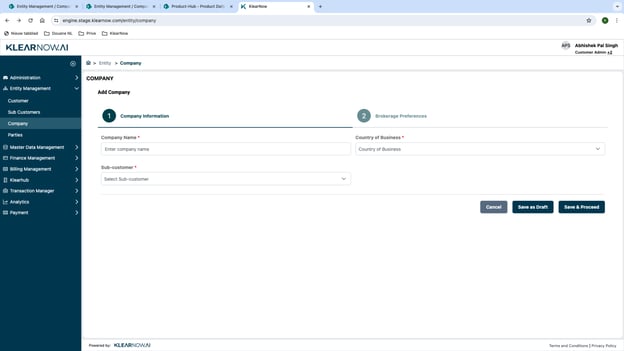
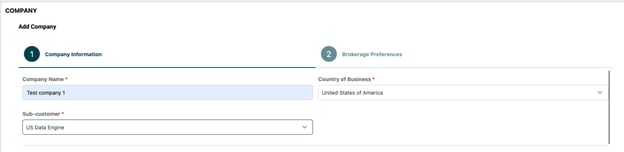
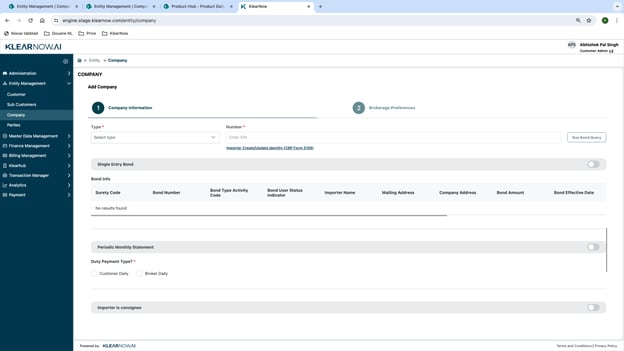
By pressing the “Add Company” button the following screen appears:
-
Add company name
-
Add country of business → Country of business determines what details must be/can be completed further down the process
-
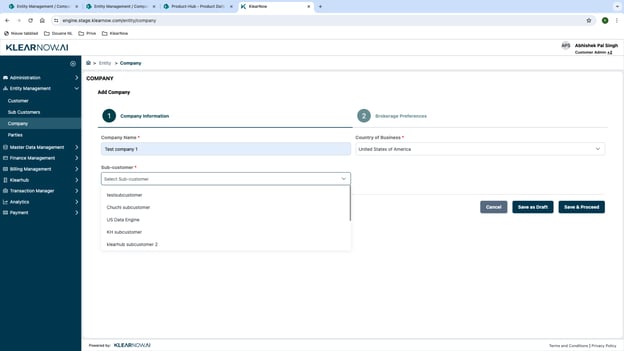
Link to sub-customer from dropdown list → All sub-customers user has access rights for will appear in the dropdown
-
All fields marked * are required fields
-
Once all required fields are completed more specific company details become available:
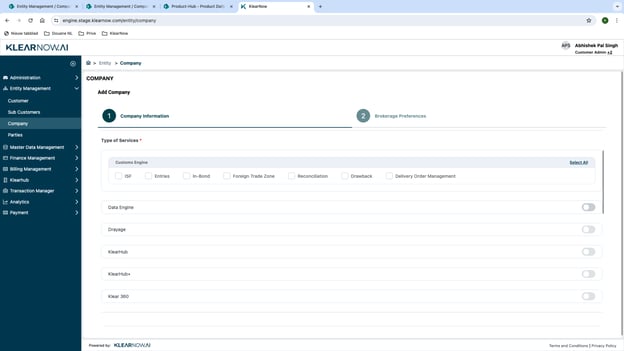
Services visible for companies are based on the country of business and also on the services the sub-customer has signed up for. Each country of business may have specific services, customs procedures or required details to be completed. The below example is for US.
-
Customs Engine → Tick the applicable Customs procedures for the company
-
Data Engine → Set Data Engine as active if the company is used to ingest and send out data using Data Engine
-
Drayage → Set Drayage as active if the company is requesting Drayage services
-
KlearHub → Set KlearHub as active if the company is used to ingest data for visibility
-
KlearHub+ → Set KlearHub+ as active if the company is used to ingest data for visibility+
-
Klear 360 → Set Klear 360 as active if the company is requesting Customs services (KlearNow 360 service)
-
Grant platform access → Drayage and 360 customers should be able to see their own shipments and by setting this as active sub-customer allows this. Company admin will get a link to set up users and access visibility on this. This replaces COB.
In this section sub-customer can add contacts within the company. These details can also be used to send automated notification which are currently under development such as customs statuses.
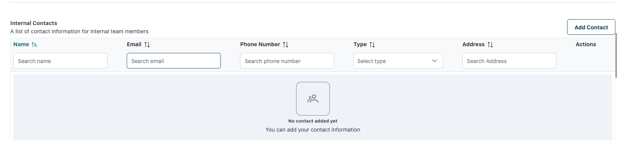
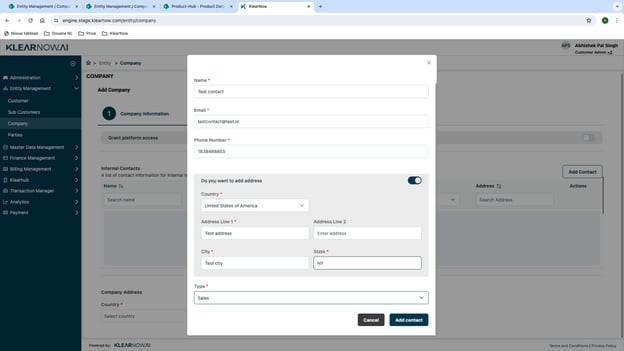
By pressing the “Add Contact” button the following pop-up appears:
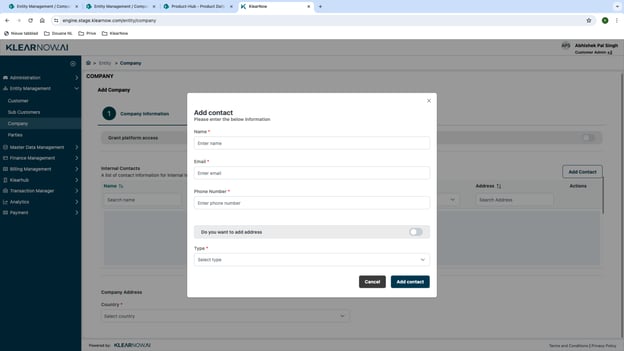
With “Do you want to add address” as active:
-
Complete all details
-
All fields marked * are required fields
-
Type - Select from dropdown → Value will determine what notifications may be received
-
Press Cancel to stop or Add contact to store the contact
When saved the new contact appears in the list of contacts:

-
Contact can now be edited or deleted using the actions
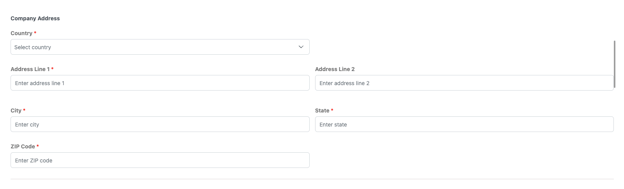
In this section the company address details can be added:
-
All fields marked * are required fields
In this section Customs specific details can be added. Especially this section is very country specific. Each country may require different details in order to be able to file Customs declarations in a compliant manner for the company.
This section is only visible if appropriate services are completed (see Services above). Data Engine, Drayage, KlearHub and KlearHub+ do not require these specific details.
Customs details section will be visible/invisible based on the below setting → Only if Yes is selected the Customs details appear on the screen

-
All fields marked * are required fields
In the documents section all important documents related to the company can be stored such as:
-
Power of attorney for Customs purposes
-
Licenses for Customs purposes
-
Authorisations for Customs purposes
-
Other… → See full list of options in the dropdown

Users can add the document by drag & drop or by browsing. When done the document type and select the document type. Optional is to add a "Valid Up to" date. This can be used for example if a POA has an end date. Document types may vary for each country of business. Once uploaded, the uploaded document can be viewed and/or deleted by applying the correct action on the right side.

-
Once all details are completed and need to be stored → Press Save and proceed
-
If the details are not completed in one session → Press Save as Draft. At any point of time the details can be updated and completed
-
If the company is no longer required → Press cancel and the completed details will be not be stored

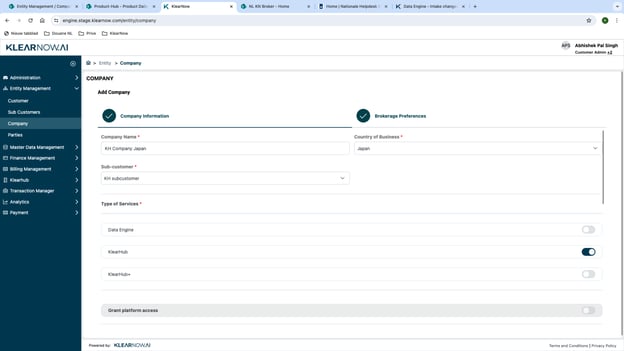
In the company overview press the edit action (pencil symbol) for the company to be viewed and/or edited:
-
2 sections are visible with completed details → Company information and Brokerage preferences (if completed)
-
Both sections can be viewed and changed. When done save changes or cancel as described above.
-
User rights determine if viewing and/or editing is allowed for users
-
The 2 sections contain all details stored when the company was added to the platform.